Record Mic and System Audio as Two Separate Tracks

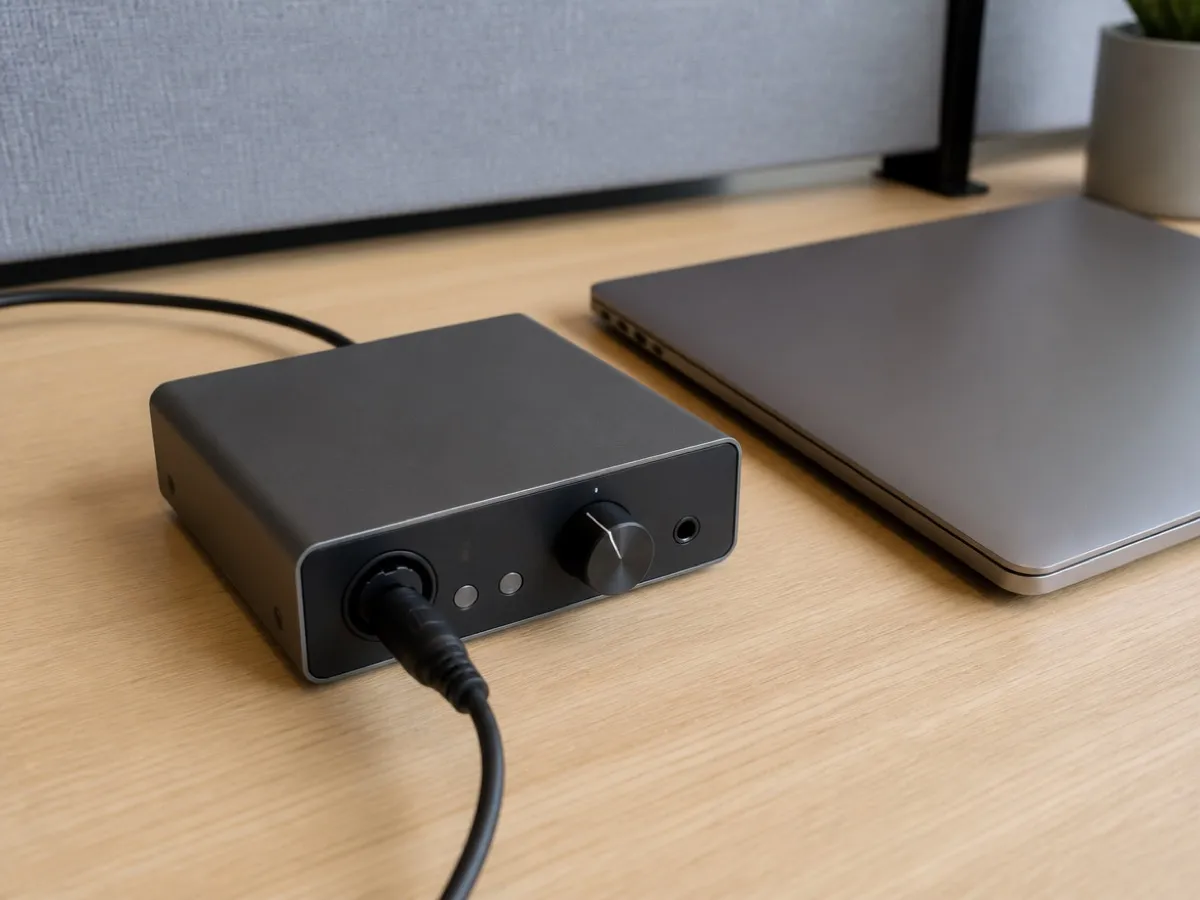
Hero photo by sandrawilliams2025 on Unsplash
Mic and system audio on a Mac are two separate local tracks in Vemoir: your microphone, and the audio the meeting app plays through the speakers or headphones. That is how you get your voice and the remote side without mixing them into one file, without screen capture, and without a bot in the roster.You start and stop from the menu bar. Both tracks stay on the Mac unless you export them or turn on an optional text model with your own API key.
Contents
- What mic and system audio each capture
- The permission is audio, not the screen
- How a call uses the two tracks
- In-person room vs mic plus system audio
- When one track is the wrong tool
- If the system track is silent
- What happens after you stop
- Frequently asked questions
What mic and system audio each capture
| Track | What it hears | What it does not hear |
|---|---|---|
| Microphone | The selected mic: your voice, and nearby sound that mic picks up | The remote caller, unless their voice is also coming out of a speaker into that mic |
| System audio | Apps playing on the Mac, including the meeting | Your voice, unless the meeting app plays you back to yourself |
- Mic trackYour voice
Follows the microphone you pick in the menu bar.
- System trackThe call
Whatever the meeting app plays on the Mac.
- BotNone
You start and stop. Nobody joins the roster.
Microphone capture is its own session, separate from the system-audio tap. You choose the mic. A headset mic hears you and little of the room. A laptop mic hears the room and, if the remote audio is on speakers, some of the call as well. That overlap is ordinary physics, not a third recording mode.
The system-audio track is the meeting as the Mac plays it. Vemoir captures meeting audio only and leaves its own playback out, so the app does not feed its own sound back into the recording. The permission macOS asks for is Screen Recording, and Vemoir uses it for audio only.
Microphone noise suppression applies to the mic track only, in Off, Balanced, or Strong. It does not clean the system-audio track.
The permission is audio, not the screen
Older notes about Mac apps often say that capturing another app’s sound requires Screen Recording. That is the permission Vemoir asks for, and the name overstates what happens. It captures meeting audio only. It does not record screen contents, pixels, or video of your desktop.
You still grant microphone access for your own track. Those are two permissions for two sources. Denying system audio leaves you with the mic. Denying the mic leaves you with the call, and with almost none of your own voice unless it leaks through speakers into another mic you did not intend to use.
Setup asks only for the permissions the capture setup needs. If you refuse one and change your mind, you can revisit setup from Settings. A denied permission is not replaced by a silent upload to a transcription service.
How a call uses the two tracks
- Join the meeting in the app you already use. Vemoir does not enter as a participant. A short account of that difference is in meeting notes without a bot.
- In the menu bar, pick the project if you file calls by client, then start recording when you mean to.
- Talk as you normally would. The mic track follows the microphone you selected. The system track follows the meeting app’s playback.
- Stop when the call ends. The authoritative transcript is built from the finalized local audio after you stop. A live preview during the call is informative only. It does not replace that pass.
- Speaker separation runs on the Mac and starts as anonymous labels you can rename. Unknown speakers stay anonymous until you opt in to remembering a voice.
The same pair of tracks works for any app that plays audio on the Mac. It is not tied to one vendor’s cloud recording. Teams on a Mac is one example, covered from the meeting-app side in record a Teams meeting on a Mac. Zoom, Meet, Slack huddles, and Discord are the same idea: if the Mac plays it, the system track can hear it.
You can also skip live capture and import a file you already have: MP3, M4A, WAV, AIFF, CAF, or FLAC. An imported file goes through the same local pipeline. It is not split into “you” and “them” unless the file itself already contains that separation. A single mixed export from Zoom is one file, not the two tracks Vemoir records live.
In-person room vs mic plus system audio
Vemoir’s shipped live capture is microphone plus system audio for a call the Mac can hear. That is not a dedicated in-person mode that seats everyone at a table and labels them from the room layout. Such a mode is not part of the app today.
If several colleagues sit around one laptop with no remote participants, the system track stays quiet. The mic picks up whoever is loudest near it. Speaker separation after the stop may still cluster voices, but you should expect one dominant local voice, not a boardroom with assigned seats.
For a room-first workflow, a recorder meant for the table, or a file you import afterward, is often clearer. The transcribe recording tool handles a short clip you already have, up to 15 minutes, with three successful runs a week, and does not upload the file. It does not label speakers. Longer takes and live two-track capture stay in the Mac app.
When one track is the wrong tool
Two local tracks are the better fit when you want your voice and the call kept apart, on the Mac, with no extra person in the roster. They are the worse fit in a few common cases.
- You need the meeting vendor’s official cloud recording as the record of the meeting. Use that vendor’s record button. Vemoir is your local copy, not their archive.
- Everyone on the team uses Windows or phones, and the point is a shared bot library. A cloud notetaker is built for that. Vemoir is a Mac app on Apple silicon, macOS Sonoma 14.2 or later.
- You only wanted your own dictation, not the call. Pause the meeting audio or use a recorder meant for single-voice dictation. The system track will still grab other apps that are playing.
Headphones change the system track in a useful way: the remote voices stay in the system track and are less likely to leak into your mic. That is usually what you want if you later need to hear who was local.
If the system track is silent
After a call, play the system track first if you kept the audio. You should hear the remote side. Then check the mic track for your voice. That order tells you whether the problem is the call path or your microphone settings.
A flat system track while people were talking on the call usually means the meeting app was muted, output went to another device, or Screen Recording was denied. Fix setup under capture or in macOS Privacy settings. It is not solved by switching microphones.
What happens after you stop
Finalized audio is what transcription uses. Parakeet v3 or a Whisper model you selected (Turbo, Medium, or Large-v3) runs on the Mac. Those models transcribe speech. They are not the models that write the minutes. Notes, documents, and questions use a local language model, or an optional text-only key you turn on yourself. None of that sends the audio off the Mac as a silent fallback.
You can keep or drop meeting audio in Storage. Each meeting keeps the retention choice that was active when you created it. If you keep the audio, playback can select a track. If you delete or purge the recording, the app shows that the audio is unavailable. Generated minutes can still exist, because the transcript was already made.
Sharing is yours. Native macOS sharing and export send the parts you choose, not both raw tracks to a team workspace you did not configure. Vemoir does not claim a recording is lawful because it stayed local. Tell people when you record. This page is not legal advice.
If you want the two sources next to the model choice, start from capture.
Frequently asked questions
Are mic and system audio mixed into one file?
They are captured as separate local tracks: the selected microphone, and macOS system audio. Playback of a retained recording can select a track.
Does Vemoir record my screen to get the call audio?
No. The call track uses the Screen Recording permission for audio only. Screen contents are not recorded.
Will the other people see a bot?
No. You start and stop from the menu bar. The meeting app stays as it was. Nobody is added to the participant list.
What if I use speakers instead of headphones?
The remote audio is still on the system track. Some of it can also leak into a laptop mic. A headset keeps your mic mostly to you.
Can this record several people sitting in the room with me?
The mic hears what is near it. The system track hears what the Mac plays. There is no separate mode that treats a group around the table as a meeting with named seats. Anonymous speaker labels, if the audio supports them, still come from on-Mac separation after you stop.
Does the free browser tool capture both tracks?
No. Browser tools transcribe a file you already have. They do not record a live call, do not take system audio, and do not label speakers.
What Mac do I need?
Apple silicon, M1 or newer, macOS Sonoma 14.2 or later, at least 8 GB of memory and 10 GB of free storage. 16 GB is recommended for long meetings. Intel Macs are not supported.
Where do I turn the tracks on?
Pick the microphone, allow Screen Recording, and start from the menu bar. The capture section is the map for those controls. Noise reduction, if you want it, is only on the mic, in Off, Balanced, or Strong.
The next meeting is the test: headphones on, both permissions allowed, record from the menu bar, and stop when the call ends. Capture shows where the two sources sit.
Written by
Vemoir TeamMac meeting records by Aurum Avis Labs · Oberägeri, Switzerland
We build Vemoir, a Mac app for local-first meeting records: capture from the menu bar, transcribe on your Mac, and turn calls into minutes and action items.
Related Articles
You might also be interested in these articles

Microphone Noise Suppression: Off, Balanced, Strong
Microphone noise suppression on a Mac offers Off, Balanced, or Strong. It runs on your mic, on the device, and sends no audio to a cloud.
System Audio Recording on a Mac, for Meeting Sound
System audio recording on a Mac captures meeting sound only. It is not Screen Recording and it does not film your display.

In-Person Meeting Notes on a Mac With the Room Mic
In-person meeting notes on a Mac use the microphone you select in the room. One mic, weaker speaker names, and no separate in-person mode.