Microphone Noise Suppression: Off, Balanced, Strong

Hero photo by sunx on Unsplash
Microphone noise suppression in Vemoir is a Mac-side setting on your microphone track only. You pick Off, Balanced, or Strong before you record. Nothing in this menu is sent to a cloud noise-removal service. The remote side stays on the separate system-audio track.If the room is already quiet, Off is often enough. Balanced and Strong target steady background noise: keyboard, HVAC, a fan. They do not fix overlapping talkers, and they do not repair bad audio from the other participants.
Contents
- What microphone noise suppression changes
- Meeting app noise settings vs Vemoir
- Off, Balanced, and Strong
- What it does not do
- A practical way to choose before a call
- Where a different approach is better
- Privacy and what stays on the device
- Frequently asked questions
What microphone noise suppression changes
The control sits on the microphone you select for the recording. That is your side of the conversation. System audio, the people on the other end of the call, is captured as its own local track through macOS System Audio Recording. An audio-only Core Audio tap takes that sound. It does not record the screen.
- OffRaw mic
No extra processing on the microphone track.
- BalancedDefault
Light cleanup for most rooms and headsets.
- StrongNoisy room
More suppression. System audio is unchanged.
Noise suppression does not mix those two tracks into one “clean meeting.” It tries to reduce non-speech interference on the mic path before that mic audio is finalized. Speaker separation still runs on the Mac afterward, on the local audio, and is a different step.
The selected mode stays visible, so you can see whether the last meeting used Off, Balanced, or Strong. If suppression is unavailable, or the processed result is uncertain, Vemoir uses the ordinary microphone path. You still get a recording. You do not get a silent swap to a cloud speech service.
Meeting app noise settings vs Vemoir
Teams, Zoom, and Meet can apply their own noise reduction to what they send on the wire. That helps other people hear you in the call. It does not change what Vemoir stores on the Mac: your mic track still follows the microphone you selected, and the system-audio track still follows the meeting playback.
Use the in-app toggle when the problem is how you sound to remote participants. Use Vemoir’s Off, Balanced, or Strong when the problem is steady noise on the recording you keep locally. You can run both, but if your voice sounds thin, try lowering the meeting app’s aggressiveness before you turn Strong on in Vemoir.
Krisp and similar apps sit between the mic and every app. Vemoir’s control applies to the mic path it records, on the Mac, without routing your voice through a subscription service. If you already use a virtual audio device, pick the same input in Vemoir that your meeting app uses so the modes match what you expect.
Off, Balanced, and Strong
Who this is for
- Calls on a laptop mic in a shared office
Who should skip it
- Studios that already gate the mic in hardware
These names describe intensity, not a quality ranking of transcription models. Off is not a failure state. It is the honest setting when the mic is already fine and you do not want the voice color changed by processing.
Balanced is the practical middle. Use it when you can hear a hum on a voice memo of yourself and you still want to sound like you. Strong pushes harder on steady noise. It is the better choice when the keyboard is loud enough to compete with your voice. It is the worse choice when the room is quiet, because extra processing has less noise to remove and more of your voice to touch.
Vemoir checks that speech is still there. That check is not a promise that every word will transcribe cleanly. A door slam, a person talking across the table, or two voices in the same mic are not “steady background noise.”
What it does not do
A few limits are worth naming before you rely on the setting in a client call.
- It does not record the other party’s audio. That is the system-audio track, covered in mic and system audio.
- It does not put a bot in the meeting. You start and stop from the menu bar.
- It does not upload the microphone to a noise-removal service. The work is on the Mac.
- It does not create a speaker profile. Remembering a voice is a separate, opt-in step.
- It is not a room-recording mode for several people around one laptop. Vemoir’s live capture today is microphone plus system audio for a call the Mac can hear.
My Voice isolation is also separate. That feature uses a personal voice profile you record explicitly in Settings. While that profile exists, Vemoir can prioritize your voice locally and keep the ordinary microphone audio when it is not confident. Noise suppression and My Voice can both be relevant on a noisy desk. They are not the same switch.
A practical way to choose before a call
- Pick the microphone in the recording controls. The same mic you would use for the call, usually the headset, not a distant laptop mic unless that is all you have.
- Set microphone noise suppression to Off for a quiet room, Balanced for a normal office, Strong for steady noise you can already hear in the room.
- Start the recording from the menu bar only when you mean to. You can file the call under a project first if you work that way.
- After the meeting, play the retained mic track if you kept the audio. If your voice sounds scooped or thin, the next call should use a milder mode or Off.
- Leave system audio alone for this decision. The other people are not running through this control.
Keep the recording if you need to compare. Storage settings decide whether future meetings retain audio. A meeting keeps the retention choice that was active when you created it. Failed or interrupted processing still keeps recovery audio, so a bad noise setting does not by itself throw the take away.
Where a different approach is better
Noise suppression on the mic is the better choice when you want the meeting to stay on the Mac and the problem is steady noise on your side. It is the worse choice in these cases:
- The other people are hard to hear. Turn up their app, check their own mic, or use a headset. Strong on your mic does not repair their audio.
- Several people share one laptop in a room. One mic and one system-audio track do not label everyone at the table. A dedicated recorder, or a file you import later, may be clearer. Import formats include MP3, M4A, WAV, AIFF, CAF, and FLAC, processed on the Mac.
- You need a cloud notetaker that everyone on a Windows team can start without a Mac. Vemoir is Apple silicon only, macOS Sonoma 14.2 or later. Intel Macs, Windows, iPhone, and iPad are not supported.
- Your transcription problem is language or names, not noise. A glossary, a speaker rename, or a different local speech model is the next lever. This setting does not swap Parakeet or Whisper.
Headphones with a boom mic still beat software when the room is loud. The Mac app can only work with the signal the microphone captures.
Privacy and what stays on the device
Recordings, transcripts, and generated records stay on the Mac unless you export them or turn on an optional text model with your own key. Noise suppression does not change that. There is no path that sends the mic to a vendor because Strong failed.
Transcription and speaker separation stay on the Mac even if you later activate a bring-your-own-key text model for notes, documents, or Ask. That activation is explicit, stored in the Keychain, and text-only. It is not triggered by this microphone setting.
Consent is still yours. Cleaning your mic does not tell the other participants that you are recording. Tell them when the situation requires it. Vemoir does not make a recording lawful, and this page is not legal advice.
Want the modes next to the capture setup? The capture and models section is where microphone, system audio, and local speech models sit together.
Frequently asked questions
Does microphone noise suppression send audio to a cloud?
No. Off, Balanced, and Strong run on the Mac, on the selected microphone. If processing is unavailable or the result is uncertain, Vemoir uses the ordinary microphone path on the device.
Does it clean the other people on the call?
No. Their audio arrives as system audio, a second local track. This control is the mic: you.
Is Strong always better than Balanced?
No. Strong is for louder steady noise. In a quiet room, Off or Balanced keeps more of the raw mic. Pick by what you hear, not by the strongest label.
Will this fix overlapping talkers?
No. It targets steady non-speech interference such as hum and keyboard noise. Two people speaking at once is a different problem, and speaker labels are assigned later, on the Mac, as anonymous clusters you can rename.
Does turning it on create a voice profile?
No. Remember this speaker is a separate opt-in. A personal My Voice profile, if you record one in Settings, is also separate and stays encrypted on the Mac until you delete it.
Can I change the mode halfway through a meeting?
Set the mode you want before you start. The choice stays visible so you know what the recording used. If you need a different mode, stop, change it, and record the next segment under the new setting.
Does a free browser tool include this?
No. The browser tools on vemoir.ch transcribe a file you already have, up to 15 minutes, with a cap of three successful runs a week. They do not record live, do not separate speakers, and do not offer Off, Balanced, and Strong. Live mic cleanup is in the Mac app.
What if suppression makes my voice worse?
Use Off for the next meeting and, if you kept the audio, compare. A closer mic often helps more than Strong. The ordinary microphone path remains available whenever suppression is uncertain.
If you want both tracks explained, read how mic and system audio are captured, and set the noise mode from capture before the next call.
Written by
Vemoir TeamMac meeting records by Aurum Avis Labs · Oberägeri, Switzerland
We build Vemoir, a Mac app for local-first meeting records: capture from the menu bar, transcribe on your Mac, and turn calls into minutes and action items.
Related Articles
You might also be interested in these articles
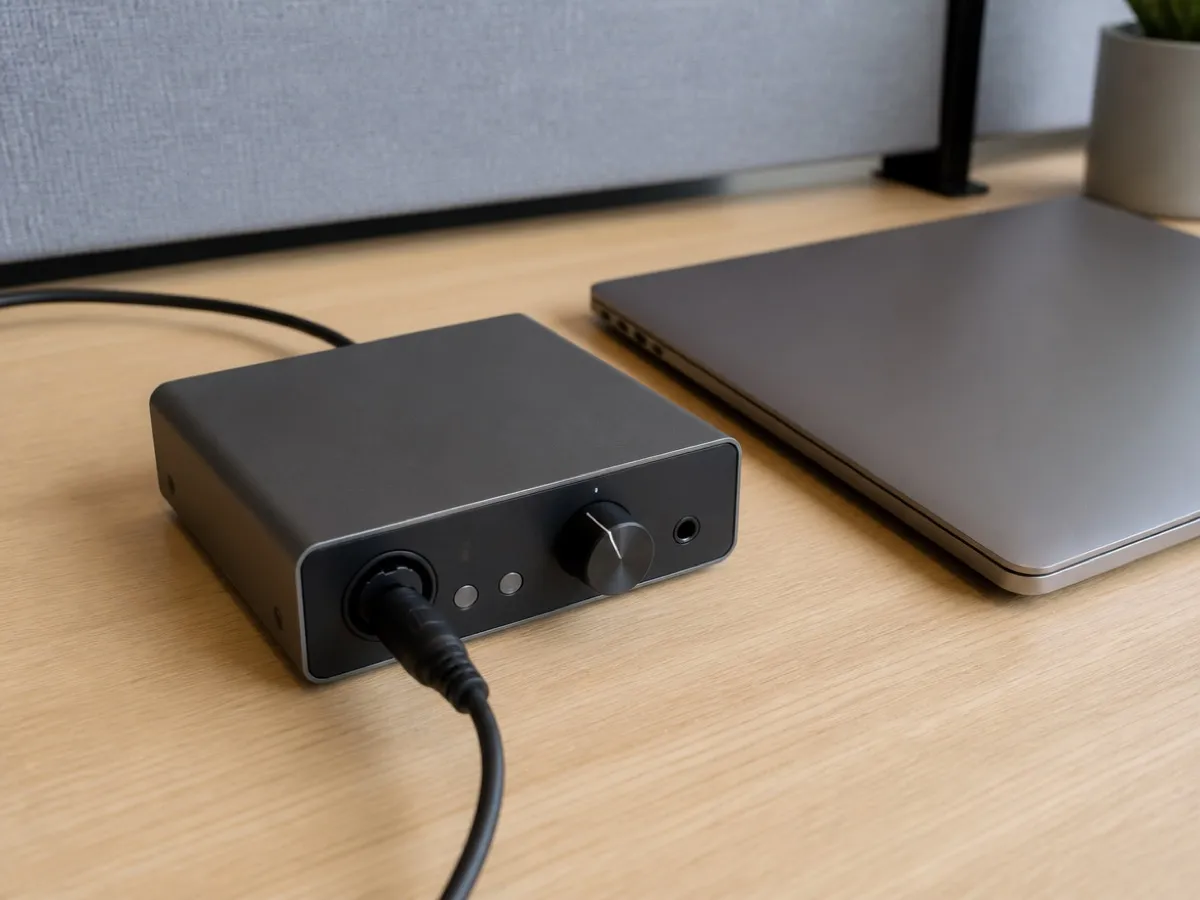
System Audio Recording on a Mac, for Meeting Sound
System audio recording on a Mac captures meeting sound only. It is not Screen Recording and it does not film your display.
Meeting Recording No Sound on Mac: Mic vs System Audio
Meeting recording no sound on a Mac is usually a mic-only capture or a denied system audio permission. Check both tracks before you recapture the call.
Export to Apple Notes and Update the Same Note Later
Export to Apple Notes from a folder you pick. A later export updates that same note instead of creating a duplicate each time you regenerate.